Friday, June 22, 2012

VS2010 Debugging tips

Many of us developers do not look beyond the basic F9, F10, F11, F5 and Watch windows while debugging in Visual Studio. Due to this we end up wasting hours debugging an issue or simulating a condition which ideally could have been achieved in a matter of minutes if we utilized the rich debugging features available out of the box in Visual Studio.
Advanced debugging tips are scattered all over the web but I thought that a consolidated list would be very useful for developers to embrace and start using the techniques.

Environment

The tips in this article should work in Visual Studio 2008/ 2010. Many of these might still be valid for the next version of Visual Studio.

Tip List

To make going through this article easier, I am breaking it into six different tips which I will present with the help of sample code and screenshots.
1. Magic of "Make Object Id"
2. Attach to process - using macro
3. Immediate Window
- Calling functions directly
- Setting and Displaying variables
4. Debugging a Windows Service
5. Having fun with breakpoints
- Trace Points
- Condition
- Hit Count
- Filter
- Changing breakpoint location
6. Locals/Auto/ Call Stack
Bonus Tip!
Enable Sound when Breakpoint is hit

1. Magic of “Make Object Id”

Sometimes we want to track an object even after it went out of the scope. We may need this ability to debug an issue which requires us to track the object until it is garbage collected. This ability is provided with the Object Id feature in Visual Studio debugger. Follow the below steps to try it yourself.
  1. Set a Breakpoint on a line of code which uses a variable your want to track as shown below.
image001.png
  1. Run your application in debug mode and let it stop at the Breakpoint.
  2. Right Click on str and click Add Watch.
  3. In your Watch 1 window, right-click the object variable str and choose "Make Object Id" from the context menu.

    image003.png

  4. You will now see 1# appended in the Value column. This is the unique ID given by the debugger to your variable for the current debug session.

    image005.png
  1. We can track the object value using this ID even after str goes out of scope as shown below. Simply put the object id 1# in the watch window to watch its value.
image007.png
  1. If we continue the iteration of for loop str changes its value but 1# remains the same. This tells us that although the previous str object has gone out of scope we can still keep track of its value using the Object Id that we assigned to it.
image009.png
  1. Lastly if you move out of the function then all instances of str would go out of scope and you would no longer be able to track str using the Watch window. It gets grayed out. However the Object Id 1# is still active and you can continue to track its value as you move through other functions.
image011.png
Note: As the name suggests, this works only with reference and not value types. Makes sense as value types will get stored on the stack and will get popped out as soon as the scope ends. So they would ideally not depend the Garbage Collector to get cleaned up.

2. Attach to process – using macro

There are many tasks that we do in Visual Studio that are repetitive and which can be automated using macros. One such example is attaching to process for debugging. Having the ability to debug an existing running process (Ex: Process of a .net console application exe) is a common requirement. The usual way would be using the Attach To Process window from Debug -> Attach To Process in Visual Studio. But this can become cumbersome and irritating if we have to do it again and again to test iterative changes. This is where macros come to our rescue.

1. Create a simple console application with a Main method and a method TestAttachToProcessMacro shown below. Make a call to this method from the Main function.
image013.png 2. Build the console application. This will generate the exe file in the debug folder. Double click and start the application using this exe.
3. The first break point shown in the code above will not be hit (as we are not yet debugging) and you will see the below output in console window.

image015.png

4. We want to debug from the second breakpoint by attaching to this process so, Now we start recording our macro in 5 simple steps –
i. Click Record TemporaryMacro from the Tool -> Macros menu as shown below:

image017.png

ii. Recording is started. Now perform the necessary actions to attach to the process as below:
Click Debug -> Attach to Process

image019.png

In the popup below find your process and click Attach.

image021.png

iii. Stop recording the macro using Tools -> Macros as below:
image023.png
iv. Save the macro using Tools -> Macros as below:
image025.png
v. Upon saving, the macro will appear in the Macro Explorer. I have named it AttachToMyProgram.
image027.png
5. Lastly we can also place a shortcut to this macro on the Debug toolbar to make things even simpler.

i. Go to Tools -> Customize -> Commands and under Toolbar dropdown select Debug as below:
image029.png
ii. Hit the Add Command button and on the below popup select macros under Categories and AttachToMyProgram under commands:
image031.png
iii. Now from under the Modify Selection rename the command as shown below:
image033.png
iv. Now the AttachToMyProgram shortcut show appear in the Debug toolbar as shown below:
image035.png
6. Now close the console application and start again. We will again see the “I am started” message. Now simply hit the AttachToMyProcess shortcut on the Debug bar and press any key in the console application window. There you are! You are in the debug session and the second breakpoint is hit. Now you can easily attach to your process with a click of a button.
image037.png

3. Immediate window

So many times we write a function and wish to debug just that function directly, again and again until it gives the output we need. Many of us have been running the entire application in effort to reach that function every time we debug. Well, that’s unnecessary. This is where the Immediate window comes is handy. You can open it using the keyboard shortcut Ctrl + Alt + I.

And this is how it works:

Calling functions directly

Let us try to call the below function directly from the Immediate window:

image039.png

We can call this function from Immediate window directly as below:
image041.png
Upon hitting enter in Immediate window, the breakpoint in the TestImmediateWindow1() function is hit without you having to debug the entire application.

image043.png

On proceeding you get the output in the Immediate window too as below:
image045.png
You can play around with the _test variable by changing its values and testing the reverse output:
image047.png

Setting & Displaying variables

We may want to pass a variable to the function we call from the Immediate window. Lets take an example of a function below:
image051.png
Using commands in the Immediate window as shown below we can declare, set and pass a variable to our function.

image049.png

Below is yet another example to call a function passing a complex object type like object of class Employee.
image055.jpg
Immediate window commands to test the function:
image057.jpg
There is much more you can do with the Immediate window but I leave it up to you to explore more if interested.

4. Debugging a Windows Service

Debugging the windows service can become a daunting task if you are not aware about this tip. You would build and deploy the service and start it. Then from Visual Studio you would use Attach to Process to start debugging. Even then if you need to debug what happens in the OnStart method, then you would have to do a Thread.Sleep() or something so that the OnStart method waits for you while you attach to the process. We can avoid all the pain by this simple tip.
Step 1: Set the Output type of the Windows Service to Console Application:

image002.png

Step 2 : Next get rid of the Program.cs file and instead paste the below code in the Service file which inherits from ServiceBase. That’s it. Now you can run the windows service in debug and it will run as a console application. Or you can deploy as usual and it will function as a windows service.
partial class MyService : ServiceBase
    {
        public static void Main(string[] args)
        {
            /*EDIT: 18th January 2012
             * As per suggestion from Blaise in his commments I have added the Debugger.Launch condition so that you 
             * can attach a debugger to the published service when it is about to start.
             * Note: Remember to either remove this code before you release to production or 
             * do not release to production only in the 'Release' configuration.
             * Ref: http://weblogs.asp.net/paulballard/archive/2005/07/12/419175.aspx
             */

            #if DEBUG
                    System.Diagnostics.Debugger.Launch();
            #endif

            /*EDIT: 18 January 2012
            Below is Psuedo code for an alternative way suggested by RudolfHenning in his comment. However, I find 
            Debugger.Launch() a better option.
                        
            #if DEBUG
                //The following code is simply to ease attaching the debugger to the service to debug the startup routine
                DateTime startTime = DateTime.Now;
                // Waiting until debugger is attached
                while ((!Debugger.IsAttached) && ((TimeSpan)DateTime.Now.Subtract(startTime)).TotalSeconds < 20)  
                {
                    RequestAdditionalTime(1000);  // Prevents the service from timeout
                    Thread.Sleep(1000);           // Gives you time to attach the debugger
                }
                // increase as needed to prevent timeouts
                RequestAdditionalTime(5000);     // for Debugging the OnStart method <- set breakpoint here,
            #endif

            */

            var service = new MyService();

            /* The flag Environment.UserInteractive is the key here. If its true means the app is running 
             * in debug mode. So manually call the functions OnStart() and OnStop() else use the ServiceBase 
             * class to handle it.*/
            if (Environment.UserInteractive)
            {
                service.OnStart(args);
                Console.WriteLine("Press any key to stop the service..");
                Console.Read();
                service.OnStop();
            }
            else
            {
                ServiceBase.Run(service);
            }
        }

        public MyService()
        {
            InitializeComponent();
        }
        protected override void OnStart(string[] args)
        {
        }
        protected override void OnStop()
        {
        }
    } 

5. Having fun with breakpoints

You can use below variations of breakpoints in isolation or combine them together and enjoy the cocktail!

Trace Points (When Hit..)

Sometimes we want to observe the value of one or more variables each time a particular line of code is executed. Doing this by setting a normal breakpoint can be very time consuming. So we usually use Console.WriteLine to print the value. Instead if it’s a temporary check using TracePoints is better. It serves the same purpose as a Console.WriteLine would. The advantage is that you don’t have to disturb the code by adding the your Console.WriteLine and risk forgetting to remove it when done. Better still, this way you can utilize other features of breakpoint by superimposing different conditions of breakpoint on a TracePoint.
Lets see a trace point in action.
Set a break point at call to ReverseString function as shown below.
image010.png
Then right click and click "When Hit.." then check Print a message. In test box copy "Value of reverseMe = {reverseMe}". Keep "Continue Execution" checked and click OK.
image077.png
image004.jpg
The breakpoint will get converted into a TracePoint (diamond shaped) as shown below.
image079.jpg

Now whenever the breakpoint is hit, it does not break in the code but continues execution and you will see the value of reverseMe variable at each hit as below in the output window:
image080.png

Condition

Condition breakpoints can be used to avoid having to write extra if/ else conditions in our code if we want a breakpoint to be hit only for a particular value.
Right click the tracepoint we set above and click Condition from under Breakpoints. Then type "i==45" in condition text box & click OK. (IMP: NEVER use single "=" in condition. Always use "==".)
Now the breakpoint will be activated only when i = 45; so the tracepoint should print only “Live45”.

image073.jpg

image074.jpg

Hit Count

Hit count can be used to find out how many times a breakpoint is hit. Also you can choose when you want break at the breakpoint.Change the Condition breakpoint to i > 45. Then Right Click -> Breakpoint -> Hit Count. Select "break when hit count is a multiple of " and type 5 as the value. Click OK.

image075.png

Now the breakpoint will be hit after every 5 iterations. Notice below output is effect of both the Condition and the Hit Count breakpoint.

image078.png

The hit count shown below says that the breakpoint was hit 54 times between from i = 46 to i = 99, but it broke the execution only after every 5 iterations.

image081.png

Filter

Useful for multi threaded applications. If multiple threads are calling the same function, you can use filter to specify on which thread should the breakpoint be hit.
Right Click -> Breakpoint -> Filter

image012.jpg

Changing Breakpoint Location

If you wish to move the breakpoint to a different line then use this option.

image082.jpg

6. Locals/ Autos/ Call Stack

The following three windows can come in handy while debugging. You can access them after you start debugging. Go to Debug -> Windows in the Visual Studio menu bar.
AUTOS: The Autos window displays variables used in the current statement and the previous statement. Helps you concentrate only on the variables being used in and around the current line.
(For Visual Basic.Net, it displays variables in the current statement and three statements on either side of the current statement.)
LOCALS: The Locals window displays variables local to the current context. You can observe values of local variables in a function here. Note that class level variable will not be visible under locals.
CALL STACK: The Call Stack displays the entire tree of function calls leading to the current function call. Can help you trace back the culprit!

Bonus Tip!
Enable Sound when Breakpoint is hit
1. Go to Control Panel -> Sounds and Audio Devices (Windows XP). Its Control Panel -> Sound in Windows 7.
2. Find and Select “Breakpoint Hit” under Program events in Sounds tab. (see pic below)
3. Choose the sound of your choice and click OK.
4. Now when a breakpoint is hit, you will hear the sound!

image006.png

Tuesday, June 19, 2012

VS2010 Code Searching features

Searching and Navigating code

Developers need to be able to easily navigate, search and understand the code-base they are working on.  In usability studies we’ve done, we typically find that developers spend more time reading, reviewing and searching existing code than actually writing new code. 
The VS 2010 code editor adds some nice new features that allow you to more productively search and navigate a code-base, and enable you to more easily understand how code is being used within a solution. 

Searching and Navigating the ASP.NET MVC Source Code

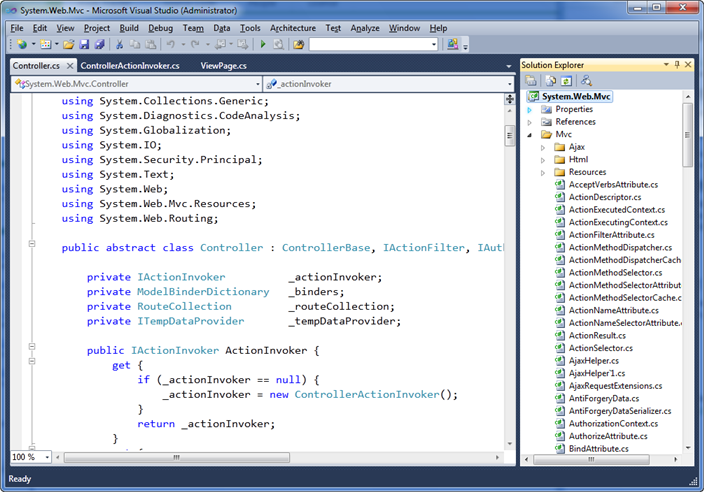
For this blog post I’m going to use the ASP.NET MVC framework code-base (which has many thousand lines of code) to help demonstrate some of the new VS 2010 searching and navigation features.  If you have VS 2010 Beta 2 installed, you can follow along by downloading and opening the ASP.NET MVC framework source code from here.
image
You should find that the performance of the below features is really fast with this project – despite it being many thousands of lines of code in size.  All of the features I’m demonstrating below are also now built-into VS 2010 (and work for all project types and for both VB and C#).

VS 2010 “Navigate To” Support

Being able to quickly find and navigate code is important with both big and small solutions.
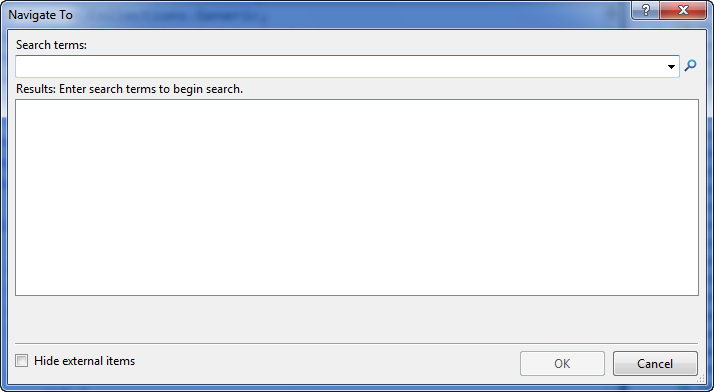
Visual Studio 2010 now supports a new (Ctrl+comma) keyboard shortcut (meaning the control key is held down together with the comma key).  When you press the (Ctrl+comma) combination, a new VS 2010 “Navigate To” dialog will appear that allows you to quickly search for types, files, variables and members within your solution – and then open and navigate to them:
image
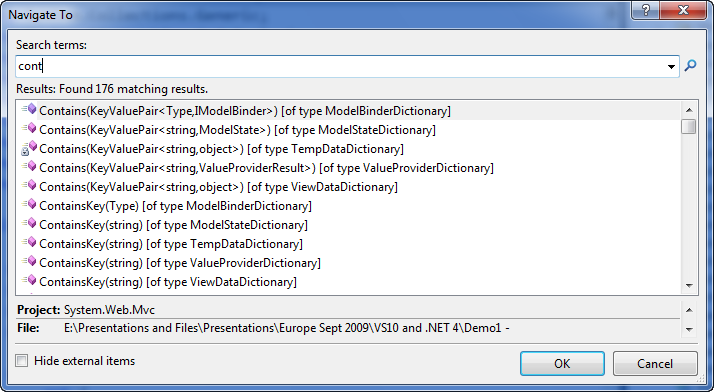
The “Navigate To” dialog provides an fast incremental search UI – with results immediately populating as soon as you start typing search terms.  For example, type “cont” (without pressing enter) and you’ll see that 176 results immediately show up within the results list as you start to type:
image
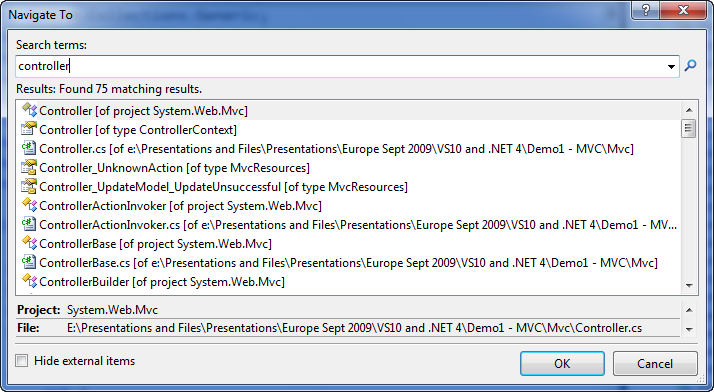
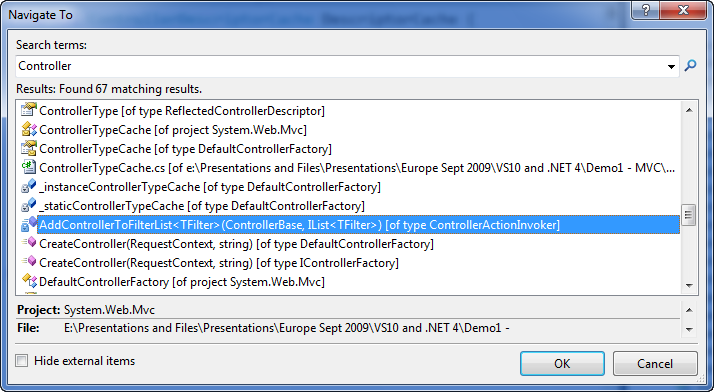
Type a few more characters and you’ll see the list automatically filters to just those results that match “controller”:
image
You can use the scroll bar to scroll through the results – or alternatively press the tab key and then use the cursor arrows if you don’t want to take your hands off the keyboard.  You’ll find that the “Navigate To” window lists all types of results that match your search term – including Type names, Method/Property names, Field declarations, and file names:
image
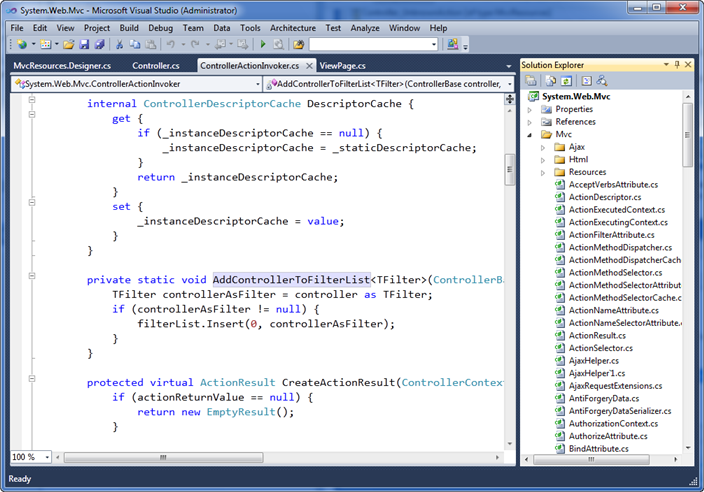
Selecting any of the results in the results list will open the relevant source file within VS 2010 (if it isn’t already open) and take you immediately to the relevant source location (and highlight the relevant name within it):
image
Nice Fuzzy Search Capabilities
The “Navigate To” search box supports some nice “fuzzy search” capabilities that allow you to perform smart filters and searches without having to know exactly the name of the thing you are looking for.  These work well with the incremental/immediate search UI of the dialog – and allow you to refine your searches and get real-time results as you type.
To try this out let’s first search on the word “cache”.  Notice how the search results include not just items that start with the word “cache” – but also display any results that have the word “cache” in it:
image
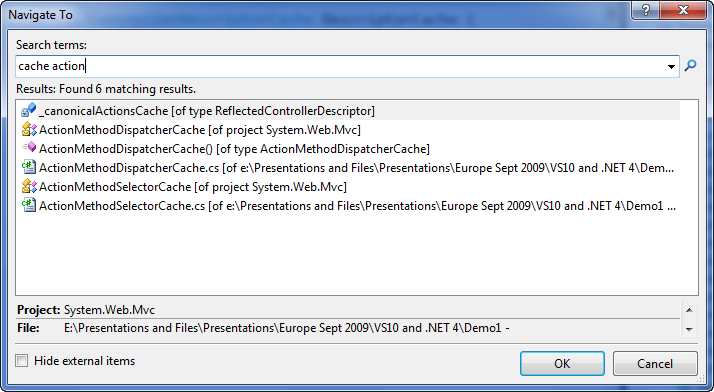
We can add multiple words to the search textbox to further filter the results.  For example, below I am filtering the list to only include those that have both “cache” and “action” in the name:
image
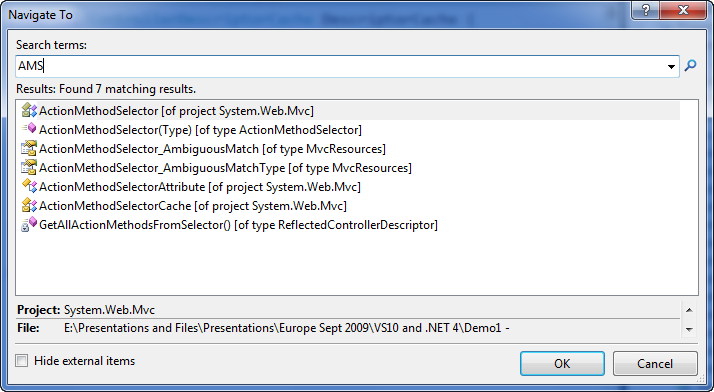
Types and members within the .NET Framework using a naming design-guideline pattern called “Pascal Casing” – which means that the first letter of each word in a Type or Member name is capitalized.  The “Navigate To” dialog allows you to optionally use this “Pascal Casing” convention to quickly filter types. Just type the uppercase first letter of names in a type/member and it will automatically filter for results that match the uppercase pascal naming convention. 
For example, typing “AMS” will filter to the below results (just those types and members that have words in them that start with A then M then S):
image
The “Navigate To” dialog allows you to quickly filter and locate code with a minimum of keystrokes – and avoid you ever having to use the mouse, open the solution explorer, and click on a file directly.

View Call Hierarchy

Having the ability to quickly search and navigate to code is great.  Being able to also quickly discover how that code is being used is even better.  VS 2010 introduces a new “View Call Hierarchy” feature that allows you to quickly discover where a particular method or property within your code-base is being called from, and allows you to quickly traverse the call tree graph throughout the code-base (without having to run or debug the solution).
To use this feature, simply select a method or property name within your code-base, and then either type the (Ctrl+K,Ctrl+T) keyboard shortcut combination, or right-click and select the “View Call Hierarchy” context menu command:
image
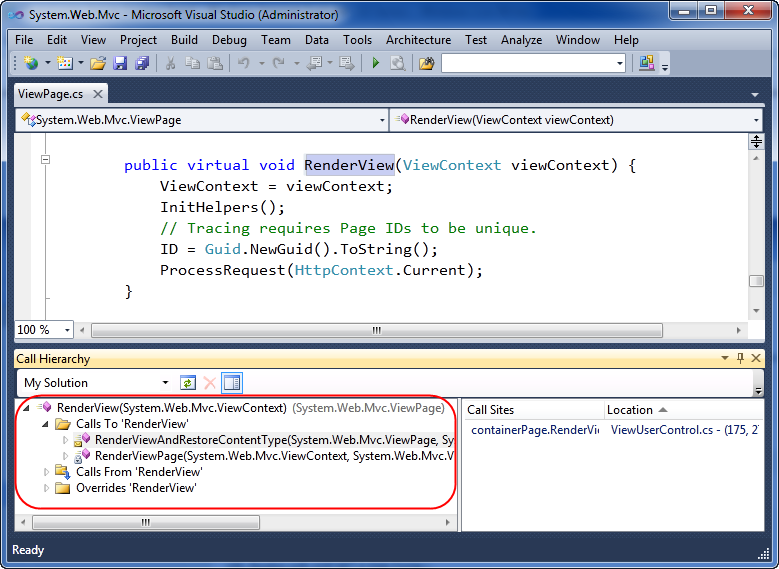
This will bring up a new “Call Hierarchy” tool window that by default shows up under the code editor.  Below you can see how the “Call Hierarchy” window is displaying the two methods within our solution that invoke the ViewPage.RenderView() method we selected above. 
image
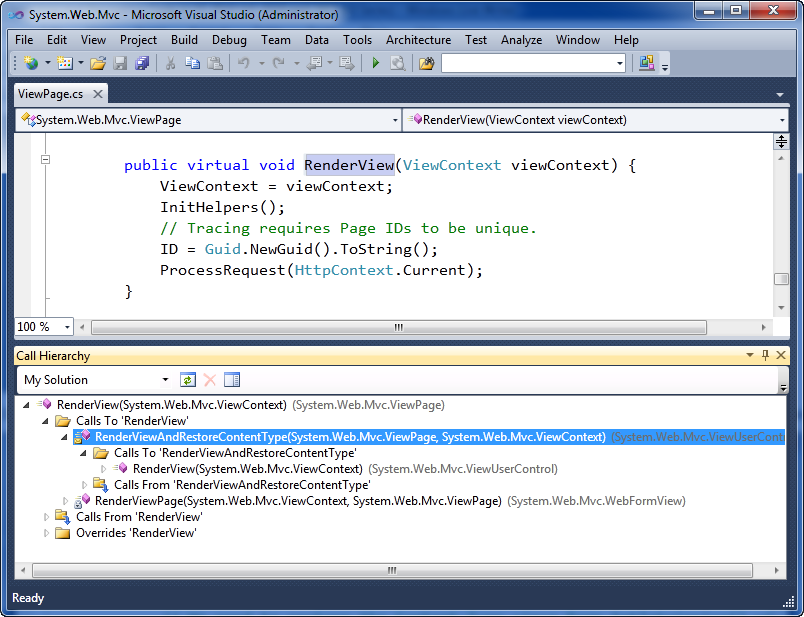
We can then optionally drill down hierarchically into the first “RenderViewAndRestoreContentType” method to see who in-turn calls it:
image
For virtual methods/properties you can also use the call hierarchy window to see what types sub-class and override them.
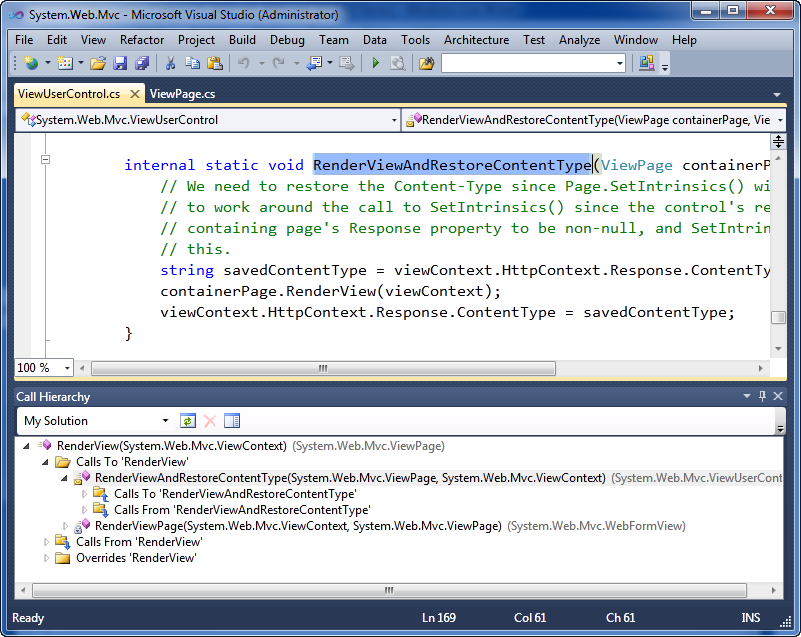
Double clicking any of the members within the “Call Hierarchy” window will open the appropriate source file and take you immediately to that source location:
image
This allows you to quickly navigate throughout a code-base and better understand the relationships between classes and methods as you code.

Tuesday, May 22, 2012

Structure Map


It supports Setter and Constructor Injection.


Now we will look into the steps to configure Structure Map into our application.
  1. Add Reference to Structure Map
  2. Add Structure Map configuration
  3. Register with the Structure Map Registry
  4. Controller Factory for Structure Map.
  5. Call Structure Map in Global.ascx.
Step 1: Add Reference to Structure Map

Add Reference to StructureMap.dll.

You can download Structure Map from http://sourceforge.net/projects/structuremap/

Step 2: Add Structure Map Configuration

using StructureMap;
using StructureMap.Configuration.DSL;
using StructureMap.Configuration;
using StructureMap.Pipeline;

public class ServiceRegistry : Registry
{
    protected override void configure()
    {
        ForRequestedType<IUserService>()
        .TheDefaultIsConcreteType<UserService>();
        ForRequestedType<ISearchRepository>()
        .TheDefaultIsConcreteType<SearchRepository>(); 
    }
}

public class DBServiceRegistry:Registry
    protected override void configure()
    {
        ForRequestedType<DBDataContext >()
        .TheDefaultIs(() => new DBDataContext())
        .CacheBy(InstanceScope.Hybrid); 
    }
}

The above configuration of Structure Map will inject UserService when there is a request to IUserService.

Similarly it will inject SearchRepository when it finds a request to ISearchRepository.

Types of Instance Scoping Provided by Structure Map:
  1. PerRequest - The default operation.  A new instance will be created for each request.
  2. Singleton - A single instance will be shared across all requests
  3. ThreadLocal - A single instance will be created for each requesting thread.  Caches the instances with ThreadLocalStorage.
  4. HttpContext - A single instance will be created for each HttpContext.  Caches the instances in the HttpContext.Items collection.
  5. Hybrid - Uses HttpContext storage if it exists, otherwise uses ThreadLocal storage
Step 3: Register with Structure Map Registry

Using StructureMap;
public static class Bootstrapper
{
   public static void ConfigureStructureMap() { 
   StructureMapConfiguration.AddRegistry(new DBServiceRegistry());
   StructureMapConfiguration.AddRegistry(new ServiceRegistry ());
  }
}

Note: You could use Step 2 and Step 3 classes in a Single File Named Bootstrapper.cs. This file could be located at the Folder which  has Global.asax.

Step 4: Controller Factory For Structure Map

Using StructureMap;
  public class StructureMapControllerFactory : DefaultControllerFactory
  protected override IController GetControllerInstance(Type controllerType) {
   try {
      return ObjectFactory.GetInstance(controllerType) as Controller;
    }
   catch (StructureMapException) {
     System.Diagnostics.Debug.WriteLine(ObjectFactory.WhatDoIHave());
      throw;
   }
  }
The controller factory is responsible for creating controller instances. We extend the built in default controller factory with our own factory for working StructureMap with ASP.NET MVC . 

Note: This  file named StructuremapControllerFactory.cs could be located in the Controller Folder.

Step 5: Modify Global.asax 

protected void Application_Start() {
  RegisterRoutes(RouteTable.Routes);
   //Configure StructureMapConfiguration
   Bootstrapper.ConfigureStructureMap();
    //Set current Controller factory as StructureMapControllerFactory
    ControllerBuilder.Current.SetControllerFactory( new myFinance.Web.Controllers.StructureMapControllerFactory()
   ); 
}
The above code will set our controller factory and configure StructureMap configuration when our ASP.NET MVC application is started.

Dependency Injection

The Problem - Tight Coupling

Before even we get in to abbreviation of IOC and DIP, let's first understand the problem. Consider the below example we have a customer class which contains an address class object. The biggest issue with the code is tight coupling between classes. In other words the customer class depends on the address object. So for any reason address class changes it will lead to change and compiling of 'ClsCustomer' class also. So let's put down problems with this approach:
  • The biggest problem is that customer class controls the creation of address object.
  • Address class is directly referenced in the customer class which leads to tight coupling between address and customer objects.
  • Customer class is aware of the address class type. So if we add new address types like home address, office address it will lead to changes in the customer class also as customer class is exposed to the actual address implementation.
     

Figure: - Problems of IOC
So if for any reason the address object is not able to create the whole customer class will fail in the constructor initialization itself.

Solution
 
 DI is also known as Inversion of Control (IOC)
Dependency injection is a design pattern basically allows us to create loosely coupled, reusable, and testable objects in your software designs by removing dependencies.
Instead of compile time dependencies it offers runtime loading and initialization of components, which makes solutions load on demand.

Principles of IOC
The basic principle of IOC stands on the base of Hollywood principle (response given to amateurs auditioning in Hollywood):

Do not call us we will call you 

In other words it like address class saying to the customer class, do not create me I will create myself using some one else.

We will take a look into the Object dependencies before digging in more.
Consider a scenario of fetching an employee details and show display in UI. Let us say create a Business logic layer class named EmployeeBAL and a data access layer class named EmployeeDAO
public class EmployeeDao
{
//Some code
}
public class EmployeeBAL
{
var employeeDAO = new EmployeeDao();
//Some code
}
From the above code you will notice one thing that we are creating EmployeeDAO instance inside the Business logic layer class. So here comes the dependency

What is wrong if we have a dependency?

Think about whether your code is unit testable. We cannot fully unit test the EmployeeBAL as it has a dependency on Employee DAO. So we can say as long as the composition of the DAO exists within the BAL we cannot unit test the EmployeeBAL.
You will also notice one more thing here; with this type of implementation you will see a high coupling of BAL and DAL.

How to make it loose coupling?

The basic idea behind Dependency Injection is that you should isolate the implementation of an object from the construction of objects on which it depends.
Coming to the example, we should be isolating the implementation of EmployeeBAL object and the construction of the dependent EmployeeDAO object.
We will see how we can make loosely coupled objects in detail

Different types of Dependency Injection
  1. Constructor Injection
  2. Setter Injection
  3. Interface-based injection

Constructor based dependency injection

We will have to modify the EmployeeBAL to accept an EmployeeDAO instance within its constructor.
public class EmployeeDao
{
//Some code
}
public class EmployeeBAL
{
EmployeeDao employeeDAO;
public EmployeeBAL(EmployeeDAO employeeDao){
this.employeeDAO = employeeDao;
}
//Some code
}

Property based dependency injection

With property based injection we will have a public getter and setter Property of type EmployeeDao so that the dependency can be externally set.
public class EmployeeBAL
{
Public EmployeeDao EmployeeDataAccess{ get; set; }
}
var employeeBAL = new EmployeeBAL();
EmployeeBAL.EmployeeDataAccess = new EmployeeDao();
Wait!!!
The above ones are just some techniques of injecting the dependency. We are still yet to discuss one more interesting thing Unit Testing.
Are you agreeing that we have removed the DAO creation from the Business Logic EmployeeBAL? Yes it is good but it still depends on the actual instance of EmployeeDao.
Consider the below mentioned implementation of the same sample senarios
interface IDataAccess
{
//Some code
}
class EmployeeDao : IDataAccess
{
//Some code
}
public class EmployeeBAL
{
private IDataAccess dataAccess;
public BusinessFacade(IDataAccess dao)
{
dataAccess = dao;
}
}
You can notice we are doing a constructor dependency injection but most important thing here
is we are using Interface type than creating a strongly typed object.
The advantage that we are getting here is we can have an in memory data access object of
IDataAccess interface type and we can easily inject the dependency to the EmployeeBAL.
By this way we no need to have the actual database dependency.
Are you happy that we can unit test the BAL without the data access dependency?

Interface Injection
Interface injection, by using a common interface that other classes need to implement to inject dependencies.
The following code shows an example in which the classes use the ICreditCard interface as a base contract to inject an instance of any of the credit card classes (VISA or MasterCard) into the CreditCardValidator class. Both the credit card classes VISA and MasterCard implement the ICreditCard interface:
01.public interface ICreditCard
02.{
03.string CardNo { set; }
04.bool Validate();
05.}
06. 
07.public class MasterCard : ICreditCard
08.{
09.private string _cardno;
10.public bool Validate()
11.{
12.return true;
13.}
14. 
15.public string CardNo
16.{
17.set { _cardno = value; }
18.}
19. 
20.}
21.public class VISA : ICreditCard
22.{
23.private string _cardno;
24. 
25.public bool Validate()
26.{
27.return true;
28.}
29. 
30.public string CardNo
31.{
32.set { _cardno = value; }
33.}
34.}


Dependency Injection (or DI) allows us to provide implementations and services to other classes for consumption in a very loosely-coupled way. The key tenet is that such implementations can be swapped out for other implementations by changing a minimal amount of code, as the implementation and the consumer are linked by contract only.
In C#, this means that your service implementations should adhere to an interface, and when creating consumers for your services you should program against the interface and not the implementation, and require that the implementation is provided for you, or injected rather than having to create instances yourself. Doing this allows your classes to not worry about how dependencies are create nor where they come from; all that matters is the contract.

Dependency Injection by Example

Let’s go through a simple example where DI could be useful. First, let’s create an interface (the contract) which will allow us to perform some task, say logging a message:
public interface ILogger
{
  void LogMessage(string message);
}
Notice that nothing about this interface describes how the message is logged and where it is logged to; it simply has the intention of recording a string to some repository. Next, lets create something which uses this interface. Say we create a class which watches a particular directory on disk, and logs a message whenever the directory is changed:
public class DirectoryWatcher
{
  private ILogger _logger;
  private FileSystemWatcher _watcher;

  public DirectoryWatcher(ILogger logger)
  {
    _logger = logger;
    _watcher = new FileSystemWatcher(@"C:\Temp");
    _watcher.Changed += new FileSystemEventHandler(Directory_Changed);
  }

  void  Directory_Changed(object sender, FileSystemEventArgs e)
  {
    _logger.LogMessage(e.FullPath + " was changed");
  }
}
The key thing to notice is that the constructor, we require that something which implements ILogger is given to us, but again notice that we don’t care about where the log goes or how it is created. We can just program against the interface and not worry about it.
This means that in order to create an instance of our DirectoryWatcher we must also have an implementation of ILogger ready. Let’s go ahead and create one which logs messages to a text file:
public class TextFileLogger : ILogger
{
  public void LogMessage(string message)
  {
    using (FileStream stream = new FileStream("log.txt", FileMode.Append))
    {
      StreamWriter writer = new StreamWriter(stream);
      writer.WriteLine(message);
      writer.Flush();
    }
  }
}
Let’s create another which logs messages to the Windows Event Log:
public class EventFileLogger : ILogger
{
  private string _sourceName;

  public EventFileLogger(string sourceName)
  {
    _sourceName = sourceName;
  }

  public void LogMessage(string message)
  {
    if (!EventLog.SourceExists(_sourceName))
    {
      EventLog.CreateEventSource(_sourceName, "Application");
    }
    EventLog.WriteEntry(_sourceName, message);
  }
}
Now we have two separate implementations which log messages in very different ways, but both implement ILogger, which means that either one can be used where an instance of ILogger is required. Now we can create an instance of DirectoryWatcher and have it use one of our loggers:
ILogger logger = new TextFileLogger();
DirectoryWatcher watcher = new DirectoryWatcher(logger);
Or, by just changing the right-hand side of the first line we can use our other implementation:
ILogger logger = new EventFileLogger();
DirectoryWatcher watcher = new DirectoryWatcher(logger);
This happens without any changes to the implementation of DirectoryWatcher, and this is the key concept. We are injecting our logger implementation into the consumer, so that the consumer doesn’t have to create this instance on its own. The example shown is trivial, but imagine using this in a large-scale project where you have several dependencies which need to be used by many times more consumers, and then suddenly a requirement comes along which means that the method of logging a message must change (say  the messages are required to be logged into Sql Server for auditing purposes). Without some form of dependency injection, you will have to carefully examine the code and change anything which actually creates an instance of a logger and then uses it. In a large project this can be painful and error prone. With DI, you would just have to change the dependency in one place, and the rest of your application will effectively absorb the change and immediately start using the new logging method.
Essentially, it solves the classic software problem of high-dependency and allows you to create a loosely-couple system which is extremely agile and easy to change.


Advantages of Dependency Injection

The primary advantages of dependency injection are:
Loose coupling
Adds potential flexibility to a codebase for future changes
Centralized configuration
Easily testable


Dependency Injection Containers

Many DI frameworks which you can download and use go a step further and employ the use of a Dependency Injection Container. This is essentially a class which stores a mapping of types and returns the registered implementation for that type. In our simple example we would be able to query the container for an instance of ILogger and it would return an instance of TextFileLogger, or whichever instance we had initialised the container with.
This has the advantage that we can register all of our type mappings in one place, usually in an “Application Start” event, and that gives us quick and clear visibility as to what dependencies we have in the system. Also, many professional frameworks allow us to configure the lifetime of such objects, either creating fresh instances every time we ask for one, or re-using instances across calls.
The container is usually created in such a way that we can get access to the ‘Resolver’ (the thing which allows us to query for instances) from anywhere in the project.
Finally, professional frameworks usually support the concept of “sub-dependencies”, where a dependency has itself one or more dependencies to other types also known to the container. In this case, the resolver can fulfil these dependencies too, giving you back a full chain of correctly created dependencies according to your type mappings.


IOC Frameworks
1. Unity Application Block (Unity)
2.  NInject
3. StructureMap
4. Castle Windsor
5. Spring.NET
6. AutoFaq
7. Picocontainer.NET
8.
LinFu
9. Puzzle.NFactory

Thursday, May 17, 2012

Cruise Control

What is Curise Control
  • Free and open source build scheduler
  • Consists of two components:
    • Build loop (runs as a service/daemon)
    • Status Dashboard (runs as web application)
  • Works with many version control systems (CVS, PVCS, Subversion, ClearCase, ...)
  • Works with any build tool that produces parseable output (Ant, Maven, ...)
  • Cross platform (written in Java)
  • Easily extensible:
    • Configuration easily extended by custom plugins
    • Well defined interfaces for version control systems, build tools and publishers
  • Well supported:
    • Complete reference documentation
    • Active users mailing list
    • Numerous tutorials
    • "Pragmatic Project Automation" book by Mike Clark

    How CC works:
    • Developer checks work into version control
    • CC polls version control
    • If CC detects any changes, it...
      • triggers a build
      • captures logs and build artifacts
        • Examples: jar, war, javadoc, unit test report, code coverage report, code quality metrics
      • publishes results
        • Examples: send email, send instant message, turn on lava lamp

        (Following is the image of build report by CC)

     Project Page

Install CruiseControl.NET :
Download the latest CruiseControl.NET release from: SourceForge or the latest build from CCNetLive.
You can find release notes here. For this article I used the installer for version 1.4 (CruiseControl.NET-1.4-Setup.exe), downloaded from the CCNetLive website.

Run the setup executable file and, when prompted, you must specify your choices for a couple of actions:
‘Install CC.Net server as windows service’ must be checked so that the setup will install CruiseControl as a Windows service.
In the Services management console the CruiseControl service will be displayed with the name: CruiseControl.NET.
‘Create virtual directory in IIS for Web dashboard’ will create a virtual directory named ccnet in the machine’s IIS web server. If you have an IIS server installation supporting multiple web sites (this is not the case for Windows XP Professional) and prefer to have a separate web site for the CCNet web dashboard you should uncheck this option. This is my choice. In the next paragraph I will show you how to create an IIS web site for the CruiseControl.NET web dashboard.

When the install process is finished all the content will be installed in the folder:
C:\%ProgramFiles%\CruiseControl.NET (e.g. C:\Program Files\CruiseControl.NET).
Under this path you will find a directory called server, containing all the CCNet binary files and executables, and a directory called webdashboard, containing the CruiseControl.NET web interface.


Create a CCNet Website in IIS
 Here I will add and configure a Website in IIS for the CruiseControl.NET Webdashboard: the administrative interface of CruiseControl.NET.
Open IIS Manager in Administrative Tools, right-click on the Web Sites node and select New Web Site.
The Web site creation wizard will start.
Click Next and you will be prompted for a Web Site Description.
Type CCNet and click Next, leave Unassigned the IPAddress, choose a port number (say: 222) and leave empty the ‘Host Header for this site’ field, then click Next.
Choose C:\%ProgramFiles%\CruiseControl.NET\webdashboard as the path for the Website and click Next.
Allow ‘Read’ and ‘Run scripts’, the default, and click Next. The wizard is finished and the new Website created.

Continous Integration

Continuous Integration is a software development practice where members of a team integrate their work frequently, usually each person integrates at least daily — leading to multiple integrations per day. Many teams find that this approach leads to significantly reduced integration problems and allows a team to develop cohesive software more rapidly.

Continuous Integration (CI) involves producing a clean build of the system several times per day, usually with a tool like CruiseControl, which uses Ant and various source-control systems. Agile teams typically configure CI to include automated compilation, unit test execution, and source control integration. Sometimes CI also includes automatically running automated acceptance tests such as those developed using FitNesse. In effect, CI means that the build is nearly always clean. 

Tools for automatic Build and Release Management:
1. Microsoft Visual Studio Team System
2. Cruise Control .NET
3. Team City
4. Hudson
5. Bamboo
6. Arbit
7. Go,
8. BuildForge,
9. TeamBuild,
10.FinalBuilder Pro
11.Automated Build Studio
12.LuntBuild
13. BuildMaster
14. BuildBot
15. Draco.NET


Continuous Integration Benefits

  • Instant build feedback
  • Increased code stability
  • Efficient and fast bug detection
  • Increased development speed 
Process
There are really two separate parts to gettings started with CI.
  1. Setting up the build server and
  2. Creating the build (e.g. Nant files)